2023-11-02

SQL Server Service Account "Log on as a service" right in GPO

In the past month, one of my clients called me for an emergency problem, saying a production SQL Server down and cannot be started. When I check the Windows event log, I found the error as depicted below:

Saying the MSSQLSERVER service account does not have the required user right "Log on as a service.".
It's quite strange, as the "Log on as a service" right was being assigned automatically by the installer to the sql service account when the sql server was installed, and that sql server had been running well for a while.
Then I immediately solved that problem by adding the service account back to the allowed list in Local Security Policy > Local Policies > User Rights Assignment > Log on as a service:

But on the next day morning, my clients called me again, saying the same problem occurred again. I found the sql service account disappeared again in the Log on as a service allowed list.

Then I checked the Microsoft KB, I found below article:
Error 1069 occurs when you start SQL Server Service
Below sentences catch my eye:
If you have already assigned this user right to the service account, and the user right appears to be removed, check with your domain administrator to find out if a Group Policy object associated with this node might be removing the right.
Ah-ha, that's a clue. I asked the domain administrator when the GPO associated with this server removed the right or not. First time the domain admin told me there's no any GPO which removes any user right. Then I insisted him to give me the GPO associated with that server. The domain admin gave me below screenshot:

Then I told the domain admin to add the sql service account into the above GPO Log on as a service allowed list. The problem resolved and doesn't occur anymore.

2023-10-03

Statistics Reporter SSMS Extension

This month blog post I would like to introduce an SSMS extension created by someone that you can get it from the internet, what you need to do is just donate any amount you like. The Statistics Reporter SSMS extension is a handy tool that helps you to read the SET STATISTICS IO, TIME ON result returned from a query/batch execution. In a long ago previous blog post I introduce a free online tool Statistics Parser which does exactly the same thing. But while StatisticsParser.com is a web page that you need to copy your STATISTICS IO and TIME result from your SSMS into the web page, Statistics Reporter SSMS extension is embedded in SSMS so you can see the well formatted result in a new SSMS tab "Statistics Report". Installation of this SSMS extension only involve a few click on "Next" buttons, so I don't bother to show it here. Below screenshot illustrates how cool is this tool:


2023-09-04

Finding High Memory Grants Queries using Query Store

Users are complaining the application is slow, system support engineer or developer find out the SQL Server response is slow when he tried to run a simple query using SSMS. You find the CPU loading is not high, so you as a DBA you wonder it's memory pressure, and you are right. By checking the Memory Consumption report, you see the Page Life Expectancy is low (just a few seconds PLE). You run the Paul Randal's SQL Server Wait Statistics (or please tell me where it hurts…) wait stats checking script, RESOURCE_SEMAPHORE wait is the top wait, meaning queries were waiting for memory grants so it can begin executing. Memory grants are used for performing query operations like sorts and hashes. You are asked to identity which queries in the SQL Server requested high memory grants. You want to look at historical query data that can survive plan cache removal and server restart. In this case, the Query Store feature and its DMVs are able to help you. Firstly, you need to enable query store for each user-databases (by default it's off).

-- Enable Query Store on each user-database
EXEC sp_MSforeachDB '
USE [?];
IF DB_NAME() NOT IN (''master'', ''model'', ''msdb'', ''tempdb'')
BEGIN
    ALTER DATABASE [?] SET QUERY_STORE = ON;
END
'; 

Let the daily workload runs for a while, so query data and wait statistics are populated into the query store on each database. Then you can run the following diagnostic query which check all the query stores on every database.

EXEC sp_MSforeachDB 'USE [?]; SELECT TOP 5 DB_NAME() AS DB, MAX(qtxt.query_sql_text) AS sample_sql_text, MAX(p.query_id) AS query_id
   ,CONVERT(DECIMAL(10,2), SUM(rts.avg_query_max_used_memory) / 128) AS avg_mem_grant_used_mb
   ,CONVERT(DECIMAL(10,2), SUM(rts.min_query_max_used_memory) / 128) AS min_mem_grant_used_mb
   ,CONVERT(DECIMAL(10,2), SUM(rts.max_query_max_used_memory) / 128) AS max_mem_grant_used_mb
   ,CONVERT(DECIMAL(10,2), SUM(rts.stdev_query_max_used_memory) / 128) AS stdev_mem_grant_used_mb
   ,CONVERT(DECIMAL(10,2), SUM(rts.last_query_max_used_memory) / 128) AS last_mem_grant_used_mb
   ,SUM(count_executions) AS count_query_executions
FROM sys.query_store_runtime_stats rts
JOIN sys.query_store_plan p
  ON p.plan_id = rts.plan_id
JOIN sys.query_store_query q
  ON p.query_id = q.query_id
LEFT OUTER JOIN sys.query_store_query_text qtxt
  ON q.query_text_id = qtxt.query_text_id
GROUP BY q.query_hash
HAVING SUM(rts.avg_query_max_used_memory) /128 > 5 -- greater than 5 MB
ORDER BY SUM(avg_query_max_used_memory) DESC
OPTION (MAX_GRANT_PERCENT = 5)';

Below is a sample result:

You can copy the query_id column value from the above result, then open Query Store > Tracked Queries, enter the query id value to see the execution plan, then check any missing index suggestions (better view in XML to show all index suggestions) and warning.

Query Store is a feature that I always suggest that every user-databases must enable it.


2023-08-04

Free OLTP Benchmarking tool - HammerDB

This month blog post I would like to introduce a free OLTP benchmarking tool, the HammerDB tool. HammerDB supports TPC-C and TPC-H benchmarks. It has an intuitive GUI to let database administrators to run the benchmark test with just a few mouse clicks. I will show you how to install this tool and run a benchmark test on a SQL Server.

1. Download the HammerDB installer from the official site. (https://hammerdb.com/download.html)

2. Run the HammerDB setup.exe. Choose the installation directory (by default C:\Program Files\HammerDB-X.X), then install it.

3. For convenience, create a shortcut to the C:\Program Files\HammerDB-X.X\hammerdb.bat file, as it does not create a shortcut on the Start menu.

4. Create a placeholder database for the hammerdb benchmark. For simplicity, set the database SIMPLE recovery mode, proper initial sizing and autogrowth size, e.g.
CREATE DATABASE [HammerDB]
 CONTAINMENT = NONE
 ON  PRIMARY
( NAME = N'HammerDB', FILENAME = N'D:\Program Files\Microsoft SQL Server\MSSQL14.MSSQLSERVER\MSSQL\DATA\HammerDB.mdf' , SIZE = 2097152KB , FILEGROWTH = 65536KB )
 LOG ON
( NAME = N'HammerDB_log', FILENAME = N'D:\Program Files\Microsoft SQL Server\MSSQL14.MSSQLSERVER\MSSQL\DATA\HammerDB_log.ldf' , SIZE = 524288KB , FILEGROWTH = 65536KB )
GO
ALTER DATABASE [HammerDB] SET RECOVERY SIMPLE  
GO

5. Run hammerdb.bat to open the GUI of the benchmarking tool. You can see this tool supports Oracle, SQL Server, DB2, MySQL, PostgreSQL, and MariaDB.

6. Double-click SQL Server, select TPROC-C, click OK.

7. Expand TPROC-C, expand Schema, double click Options. Enter the SQL Server name and login information. Enter the name of the placeholder database that you just created. Select the "Number of Warehouses" and "Virtual Users", which determines the intensity of the workload.

8. Double click Build, this tool will populate the database with sample data.

9. Fix the error if you get any. (In my case, I download and install the ODBC Driver 18 for SQL Server, then run again the schema build). You should see the virtual users in the hammerdb tool are running. And in your database, there are sample tables and data populated.

10. Once all virtual users are completed, click the RED square button on the top menu bar. Which destroy the virtual users, so you can continue the next step.

11.  It is recommended to backup the database, as this data population process is time consuming, and the backup gives us an exact dataset to perform future comparison.

12. Expand Driver Script, double click Option. By default, ‘Timed Driver Script’ is selected. Click OK to close this option window.

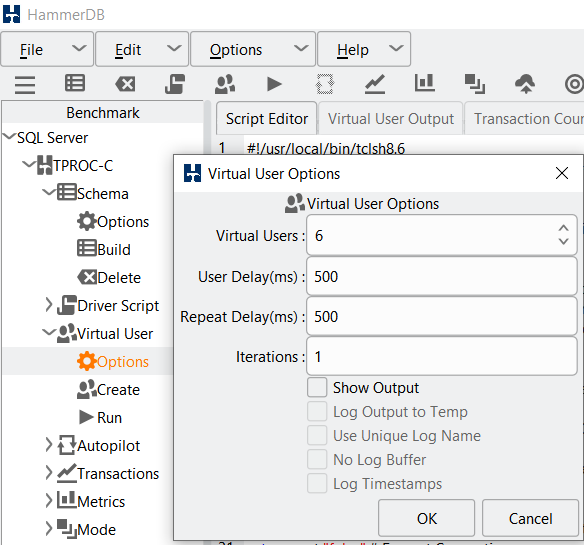
13. Expand Virtual Users, double click Option. Select the number of virtual users. Make sure NOT to check ‘Show Output’, as it can slow the actual benchmark results considerably.

14. Double click Create under Virtual User to create the virtual users for the test.

15. Double click Run under Virtual User to start the load test.

16. You can see the Timed test is running by the virtual users. Also in SSMS, you can see the tables are populating.

17. Once the test completed, you can see the Virtual User 1-MONITOR says "Test complete. TEST RESULT : System achieved XXXX NOPM from XXXX SQL Server TPM".

TPM stands for Transactions per Minute and cannot be compared between different database vendors. This value cannot be consistent between database vendors as different platforms report different transaction rate metrics, e.g. Oracle reports user commits + user rollbacks, whereas SQL Server reports Batches/sec. Also note that HammerDB reports all transactions occurring in the database and therefore if other workloads are taking place these will be shown in the TPM figure as well. For consistency across databases see NOPM. NOPM stands for New Orders per Minute and is a vendor/platform independent value extracted from the schema itself. For this reason NOPM reported at the end of a timed test is the only way to compare OLTP performance across different database platforms.

Now you can restore the database on another SQL Server, run the same test, and compare the test result to see which configuration is performance optimized.

2023-07-01

sp_validatelogins

This month blog post I would like to talk about another easily overlooked but very useful tool in SQL Server, the sp_validatelogins stored procedure, which lists out Windows (and Active Directory) users and groups that are mapped to SQL Server logins but no longer exist in the Windows (and Active Directory) environment. Now let's see a demo to show how it works.

In this demo, I created a new Windows user, named peter, in my laptop DESKTOP-LJND0A5. Then I created a SQL Server login DESKTOP-LJND0A5\peter for this Windows user.

Run the sp_validatelogins, you should see no result. 

Now let's remove the Windows user.

Run sp_validatelogins again, now you can see the removed user DESKTOP-LJND0A5\peter in the stored procedure's result.
 

Now you should remove the orphaned SQL Server login. Orphaned login is one of the vulnerabilities that can be used by malicious users to attack your valuable production databases. And that is why some companies avoid adding Windows user directly into SQL Server login, while only allows Windows group to be added into SQL Server.

2023-06-06

TSQL Anti-Pattern Scanning Free Tool - TSQLLint

This month blog post I would like to share a free tool for scanning anti-pattern in T-SQL code, the TSQLLint which can also be integrated into SSMS. Below steps show how to install and use it. You only needed to install it in your machine, unnecessarily in the SQL Server.

1. Download and install the latest .NET for Windows (.NET 6.0 or higher). 

2. Open a Command Prompt, run below command:
    dotnet tool install --global TSQLLint

3. Find the location where the tsqllint.exe installed, it should in the Path environment variable.
    E.g. %USERPROFILE%\.dotnet\tools

4. Open SSMS -> Tools -> External Tools...

5. Enter the following:
    - Command: full path including EXE name
    - Arguments: $(ItemPath)
    - Initial Directory: put the folder path without exe name
    - Check Use Output window
    - Title: tsql-lint

6. Now you can try to use it. Open the sql script file you want to check in SSMS, then run the tsql-lint external tool. You will see the scanning result in the output window. Double-click a result row it will bring you to the corresponding line of code.

Let's share this tool to T-SQL developers!

2023-05-04

Connection Timeouts in Multi-Subnets Availability Group Listener

This month blog post I would like to share a connection timeout issue that one of my client encountered and fixed by me. The client has some Crystal Reports connect to a MS SQL database in an availability group, through the availability group listener, which has multi-subnets IP addresses. The client found the reports intermittently connection timeout in the MS SQL database. According to this Microsoft documentation, 1) To resolve this situation when the data providers support the MultiSubNetFailover parameter, add the MultiSubNetFailover parameter to your connection string, and set it to true. 2) To resolve this situation when your legacy clients cannot use the MultiSubnetFailover property, you can change the listener's RegisterAllProvidersIP value to 0 (and lower the HostRecordTTL value if required). As the client found the application's data provider doesn't support the MultiSubNetFailover connection string parameter, I can only help them by disabling the RegisterAllProvidersIP in the AAG listener. Here comes the steps to do:

1.  Open PowerShell command window using Administrator privilege.

2. Run command Get-ClusterResource to get the AAG listener cluster resource name (it should be AagGroupName_ListenerName).

3. Run command Get-ClusterResource <AAG listener cluster resource name> | Get-ClusterParameter RegisterAllProvidersIP to get the current value of this parameter. It should be 1 if you create the AAG listener by using SSMS.

4. Cross check that the AAG listener registered all its multi-subnets IP addresses in DNS, by running nslookup <listener name>. Below screenshot illustrates steps 1 to 4:

5. Run command Get-ClusterResource <AAG listener cluster resource name> | Set-ClusterParameter RegisterAllProvidersIP 0 to disable the register all IP cluster parameter in the listener cluster resource.

6. For simplicity, failover the AAG to make this change takes effect.

7. Run command Get-ClusterResource <AAG listener cluster resource name> | Get-ClusterParameter RegisterAllProvidersIP to double check the parameter set to 0, and nslookup <listener name> to double check the listener now only registered one active IP in DNS. Below screenshot illustrates steps 5 to 7:

Happy Labour Day!